
Govee curtain light animation
I worked out a way to make my own animations for Govee Curtain Lights 2, a 20 x 26 grid of 520 coloured LEDs I bought last year to hang in our front window and add a bit of festive cheer to the solstice celebrations. It wasn’t easy so I’m writing it up to remind myself how I did it and perhaps help others. I was inspired by this outstanding example of what can be done from user @Dark-soho in the Govee community forum. I didn’t know it was even possible to make such a long animation. I wanted to make my own little story like that, that would entertain a viewer for say 30 seconds and then repeat. Their example was made for Curtain Lights Pro but my Curtain Lights 2 can still make some impressive effects.
The problem is the “Govee Home” phone app is very basic. There are some brilliant examples of effects I like in the “Share Space” but there’s no way to modify or combine them to make your own. The best you can do is make a sequence under More > Auto-Play but it only changes every 5 minutes and no-one is going to stand there for half an hour to watch a sequence of say 6 scenes. Also, Auto-Play doesn’t resume after the timer turns the lights off and on – it has to be triggered manually, which defeats the purpose.
There’s an editor (under DIY > + > Advanced) but it would take a very long time to put together such a story there and it wouldn’t be downloadable. I asked @Dark-soho how they had done theirs and they responded with a great explanation but they used Adobe Animate which is far too expensive for my needs (£263/year) and would take too long to learn.
Fortunately, there are cheaper and simpler alternatives. I used asesprite for this tutorial.
Running Deer
The first sprite I made was a running deer. I found an existing animation that I liked on this page:
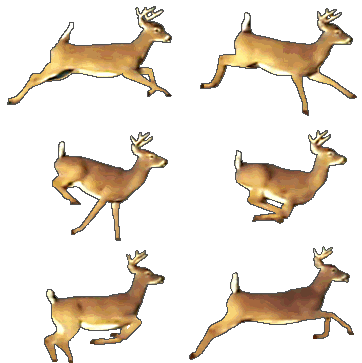
Obviously, it has far too many pixels and the wrong colours for displaying on a 20 x 26 grid of coloured LEDs, so let’s fix that. Note also that it takes up about 63kB of memory at the moment and we only have about 100kB to play with (exact amount unknown) so we’ll need to reduce the size a lot.
- In asesprite, go to File > Open and select the image you want to import. In this case the deer appears with a transparent background (shown as a grey and white chequered pattern), which is good. I’ll discuss removing unwanted backgrounds later.
- (Optional) Go to Edit > Preferences > General > UI Element Scaling and increase it to 200% to make things a bit easier to see on a modern hi-definition display.
- The deer appears stationary but we can see it move by pressing Enter. Even better, press Tab or click the Show Timeline button at the bottom right
 to open the timeline, then the Play Animation button
  . We’ll be using this timeline a lot so leave it open. The example animation has 18 frames, each displayed for 40ms (25 frames a second).
 - The colours palette at the left of the screen contains many colours that we can’t possibly show on our LED curtain. We can reduce them by pressing the options button
 at the top of the palette window and selecting New Palette from Sprite and setting Color Count Limit to say 16. Then click the Remap Palette button at the bottom. Obviously the curtain light won’t show dark colours very well but don’t worry about that now, the app will translate the colours to brighter ones when we upload the animation.
 - To resize the image to fit our curtain light, first press Ctrl+Alt+I or go to Sprite > Sprite Size and set the width to 20 pixels. Zoom in so you can see the result properly by pressing Z or the Zoom button at the right
 then the Fit Screen button at the top of the window. Now press C or go to Sprite > Canvas Size and set the width to 20px and the height to 26px.
 - The background now looks a bit strange so fix this by going to Edit > Preferences > Background and changing the Checkered Background Size to 4 x 4 or similar. Then in View > Grid > Grid settings set the grid to 1 x 1.
 to open the timeline, then the Play Animation button
  . We’ll be using this timeline a lot so leave it open. The example animation has 18 frames, each displayed for 40ms (25 frames a second).
 at the top of the palette window and selecting New Palette from Sprite and setting Color Count Limit to say 16. Then click the Remap Palette button at the bottom. Obviously the curtain light won’t show dark colours very well but don’t worry about that now, the app will translate the colours to brighter ones when we upload the animation.
 then the Fit Screen button at the top of the window. Now press C or go to Sprite > Canvas Size and set the width to 20px and the height to 26px.
We now have an animation that looks something like this (the pixels aren’t really blurry, they just look blurry here because the image is enlarged so much). It uses only about 2kB of memory.

Let’s see how this looks on the live curtain. Before we can export the sprite as a GIF file, we must set the transparent background to something. The easiest way is to add a background layer filled with a colour. This was much more difficult than I expected due to confusing UX design and lack of error messages or documentation.
- First rename the current layer in the timeline to avoid confusion (it’s probably just called “Layer”) to something more meaningful like “Deer” by double-clicking the name.Then right-click it and select New Layer (or press Shift+N) and name the new layer something like “Background”.
- Click the new layer to select it and drag the yellow outline to move it to the bottom of the stack.
- Press Ctrl+A to select the whole canvas in the upper window. On the timeline, click the first (leftmost) Cel in the background layer to select that frame.
- Click the foreground colour button (unlabelled, second from the bottom underneath the palette) and select a colour. For black, set the R, G and B sliders to zero and the A slider to 255.
- Press F to fill the first Cell with black. The deer should still be visible but the background should go black.
- Drag the first cell to the right to select the rest of the frames in the sequence, right-click and select Link Cels.
Now when you run the animation you should see the deer run on a black background. Go to File > Export > Export as and save it as a GIF file. A good location to save it would be a location that is backed up to the cloud (I used kDrive because I’m in Europe) where your phone can see it. On your phone, make sure the GIF is visible in your cloud app and has been downloaded. You may have to select “Download” to achieve this.
Now, from the Govee Home app on your phone, select your curtain light, turn it on and go to DIY, click the plus symbol, then in the Simple tab under the Effect dropdown select GIF and click the tick (checkmark) at the top right. Click the plus sign under Upload GIF and browse to the location on your phone where your GIF has been downloaded. Click “Apply” to see the effect. (If it says “Application failed” you were probably just too slow or have moved out of bluetooth range, go back and reconnect to the curtain.)
The effect is surprisingly good – the colours are visible and the motion is smooth. Let’s add a bit of falling snow to the background.
Falling Snow
It’s easy to add some random white dots to our black background and make them move downwards. The hard part is getting the speed right and avoiding sudden jumps as the sequence repeats, so let’s address that first.
One way to avoid sudden jumps is obviously to just keep adding random dots at the top (and discard the bottom row) every time you shift the pattern down, for the entire duration of the “scene”. For a long scene that’s a lot of work but it can be avoided by effectively rolling the background into a tube and attaching the bottom edge to the top so that it repeats.
We have to decide how many rows to repeat. The deer is running at 40ms per frame for 18 frames. If the snow drops one row every frame it looks too fast, but I found that dropping every second frame looks OK. That means our pattern will repeat every 9 rows and will update at 12.5 frames/second, which still looks quite smooth and random. Here’s the result (right-click and “Save Image as…” to download it and try it out on your lights, or use for your own animation).

Here’s what it looks like in real life.
We could perhaps get a more 3-dimensional appearance by adding another dimmer set of snowflakes falling at a different speed in the background. We could also give more of a sense of movement by making the foreground snowflakes fall diagonally.
Next we need some colour effects, fireworks, scrollling text and some humour. I’m running out of time now so that might have to wait until next year! Happy New Year!
Nice Tutorial 😉
here’s Dark-Soho, went here to check your stuff. Really Good work, over time you’ll discover new tricks and way to do what you have in mind.